

The plugin talks to Google through the PageSpeed Insights API, and Google asks for an API key for that. The key is free. All you need is a Google account, like a Gmail address.
Google changes the look of its Cloud Console from time to time, so your screens may not match ours exactly. The steps stay the same: create a project, turn on the PageSpeed Insights API, create a key and paste it into the plugin.
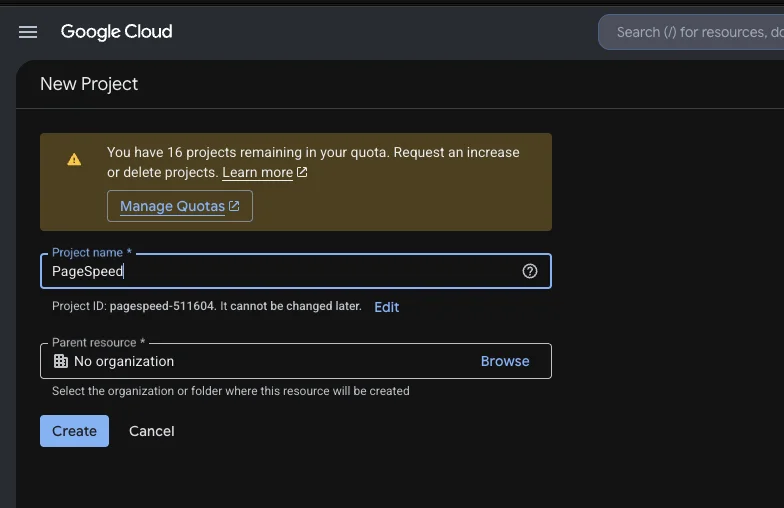
1. Create a project
Go to console.cloud.google.com and sign in.
Click the project picker at the top of the page, then New project.
Give it any name, for example PageSpeed, leave the location as it is and click Create. It takes a few seconds.
Make sure the new project is selected in the project picker before you go on.
2. Turn on the PageSpeed Insights API
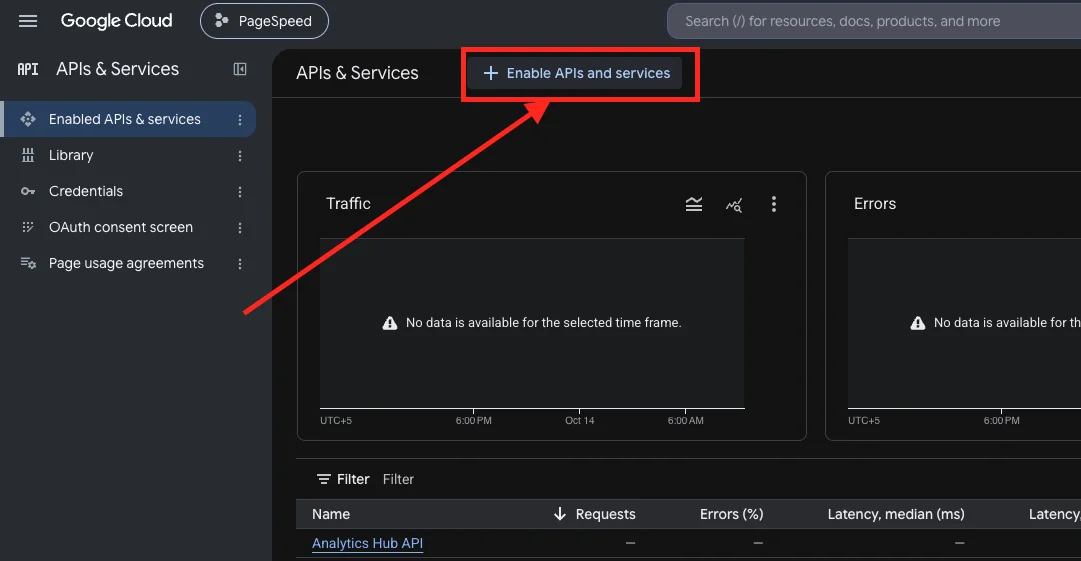
Open the menu and go to APIs & Services, then click Enable APIs and services at the top.
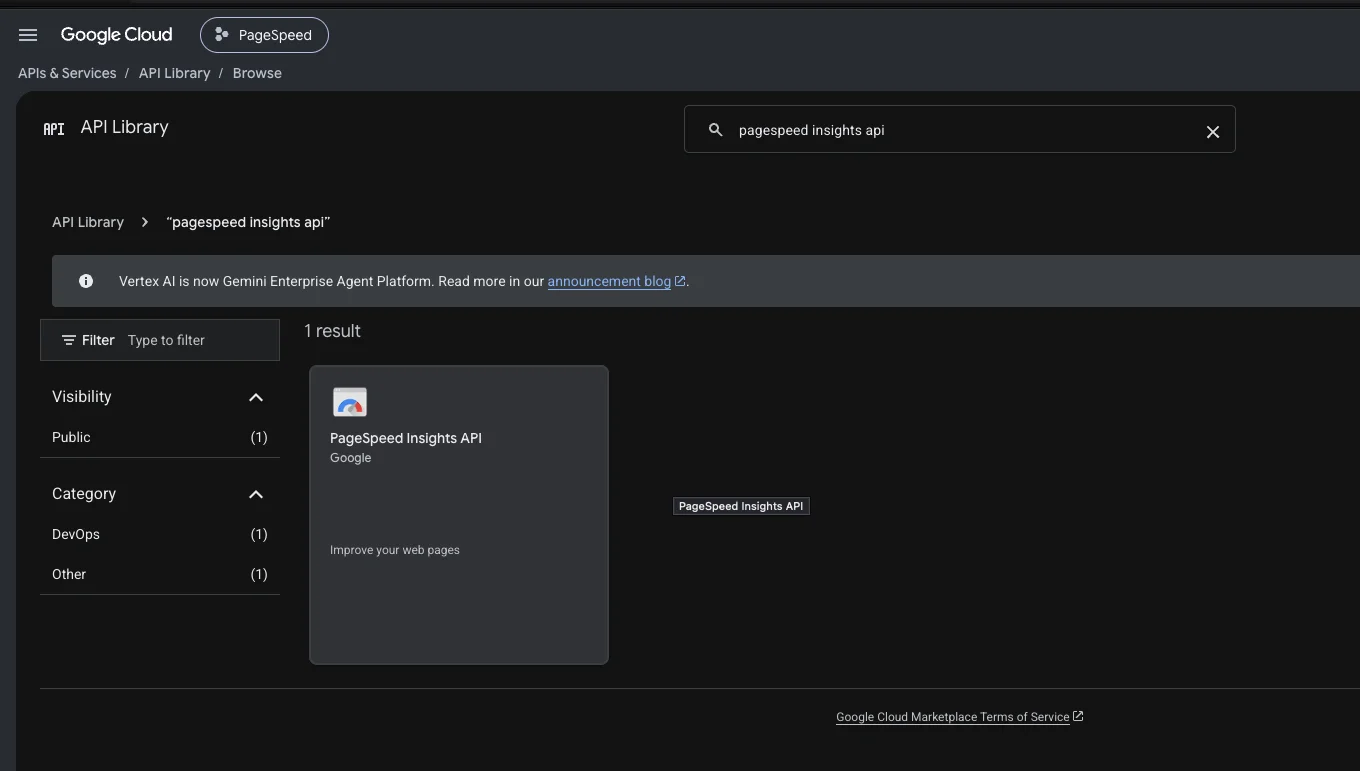
Search for PageSpeed Insights API and open it.
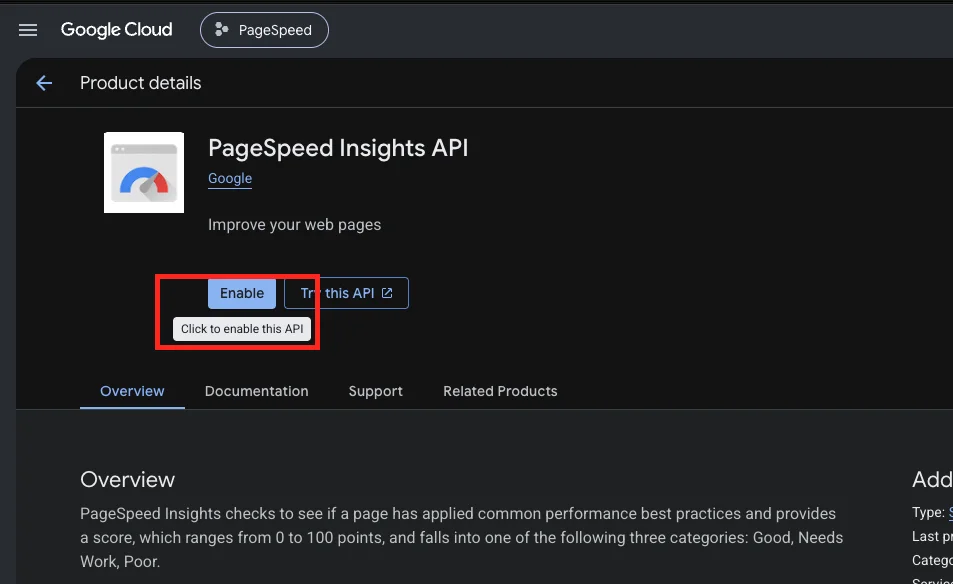
Click Enable.
3. Create the API key
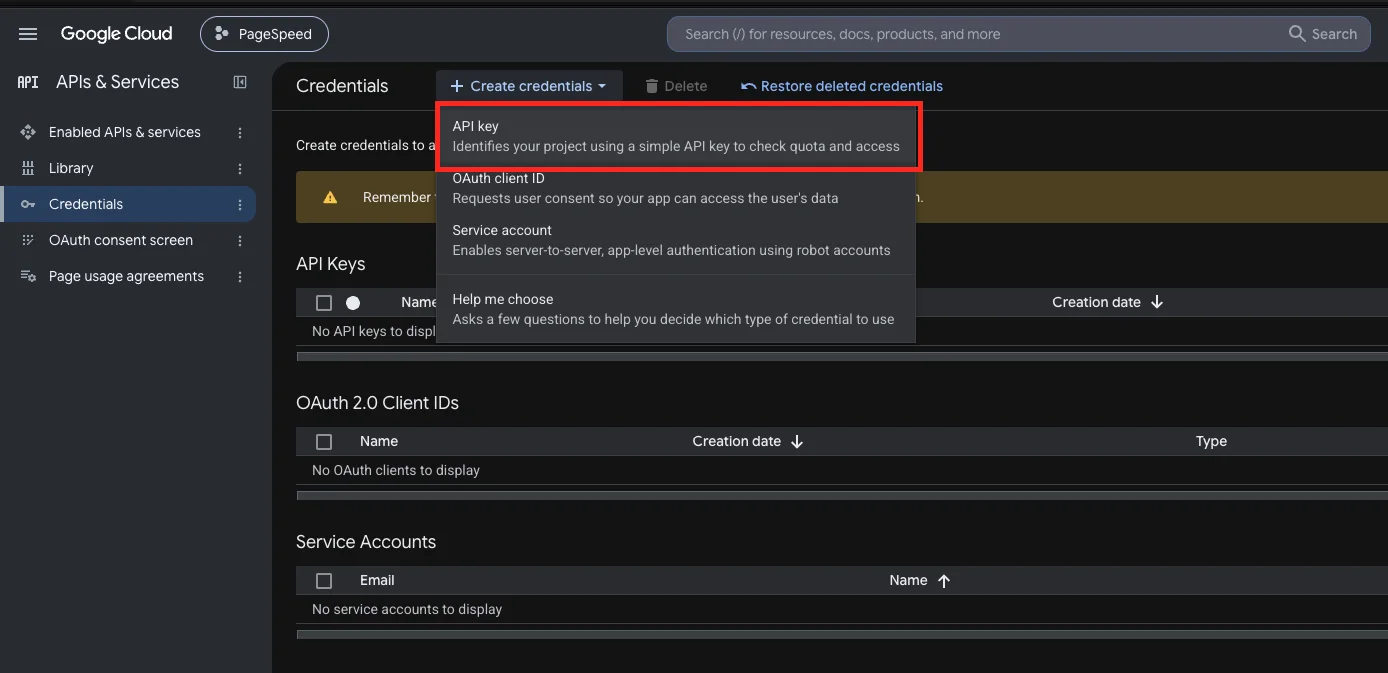
Go to APIs & Services → Credentials.
Click Create credentials → API key.
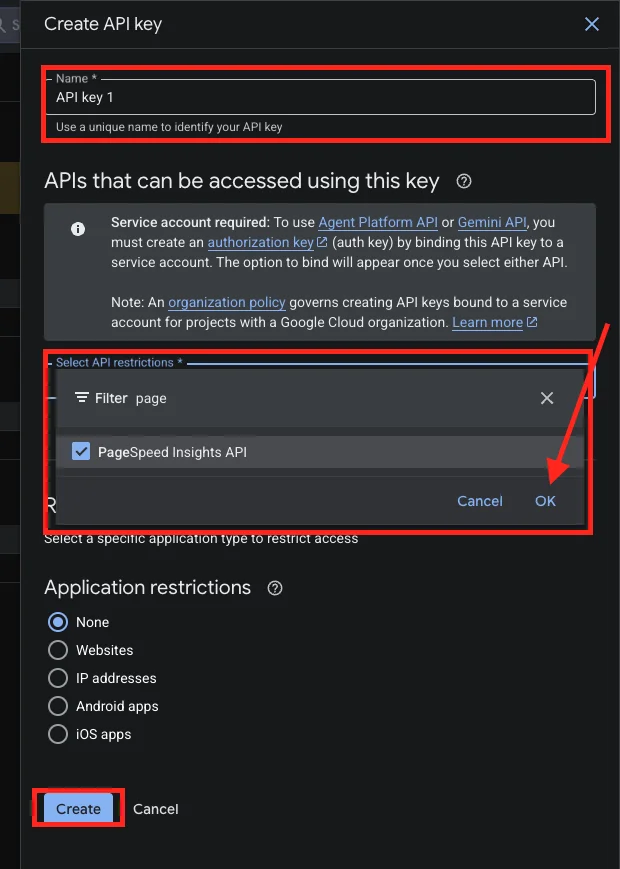
A window opens where you set up the key before Google creates it:
Give the key a name you will recognise later, for example PageSpeed for my site.
Under Select API restrictions, tick PageSpeed Insights API and click OK. This way the key can only be used for PageSpeed checks, which is safer if it ever leaks.
Under Application restrictions, keep None. If you know your server’s IP address, you can choose IP addresses and enter it instead.
Click Create, then copy the key Google shows you. You can always come back to the Credentials page to copy it again.
4. Add the key to the plugin
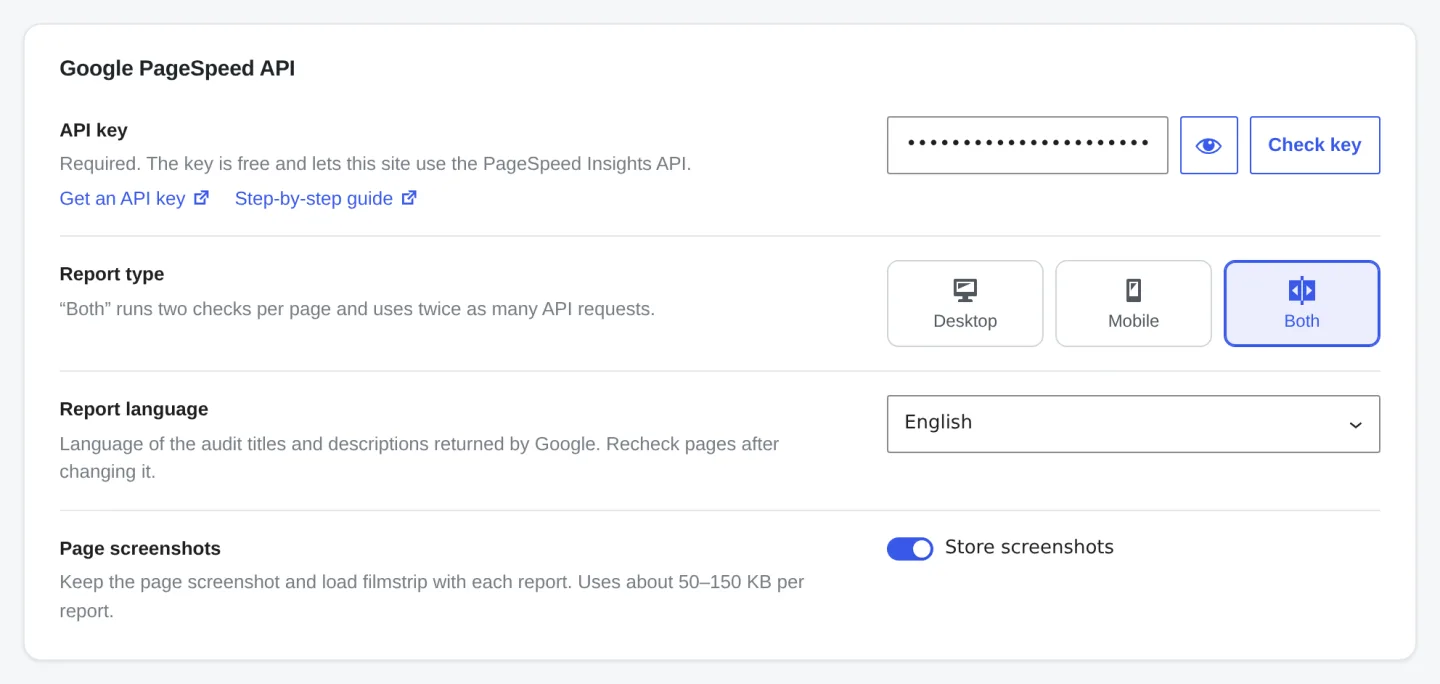
In WordPress go to Tools → Pagespeed Insights → Settings.
Paste the key into API key and click Check key.
When you see The API key works, click Save settings.
If the check fails, the message tells you why: the key is wrong, the API is not turned on yet, or a restriction blocks your server. After enabling the API, give Google a minute before you check again.
How many checks can I run?
Google gives each project 25,000 requests per day for free. One page is one request, or two if you check both desktop and mobile. That is enough for about 12,000 pages a day, far more than most sites need. If you ever hit the limit, the plugin stops the scan and tells you. The quota resets at midnight Pacific Time.