

Once a scan has run, you have three places to look: the Overview for the whole site, the Reports list for every page, and the report of a single page.
Overview
The Overview shows the average of every checked page. Start here to see how the site is doing as a whole.
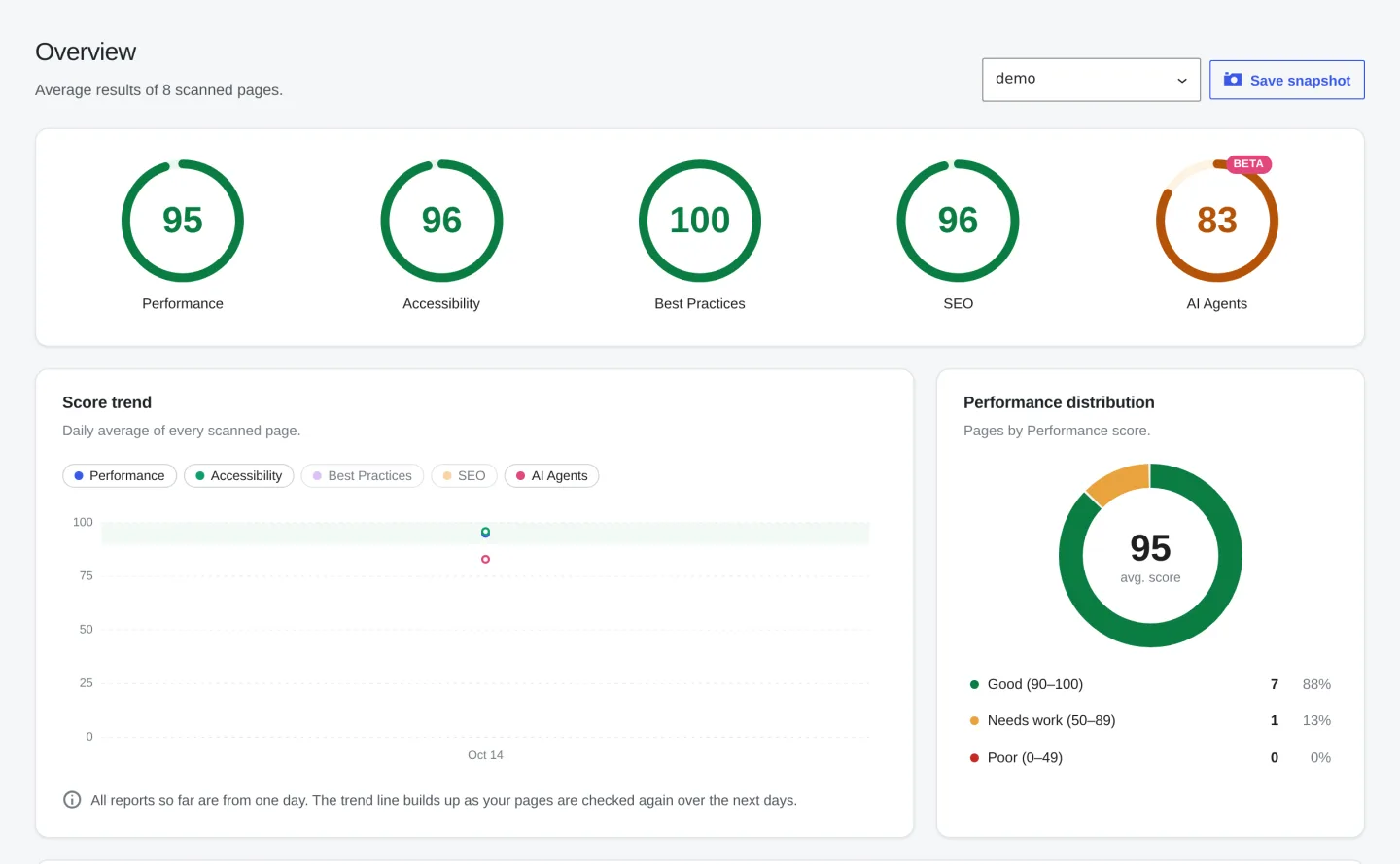
- Five scores: Performance, Accessibility, Best Practices, SEO and AI Agents, averaged across your pages.
- Score trend: one point per day. The line fills in as pages are checked again over the following days.
- Performance distribution: how many pages are good (90 to 100), need work (50 to 89) or are poor (below 50).
- Lab metrics: LCP, TBT, CLS, FCP and Speed Index across your pages, compared with Google’s thresholds.
- Top opportunities: the issues that affect the most pages. Fixing one of these often helps many pages at once.
Use the filter at the top to narrow everything down to Pages, Posts, a post type, Category archives or a Custom URL label. The Desktop and Mobile switch in the header changes all screens at once.
Reports list
The Reports tab lists every checked page with its Performance score, the main lab metrics, Accessibility and SEO, and when it was last checked.
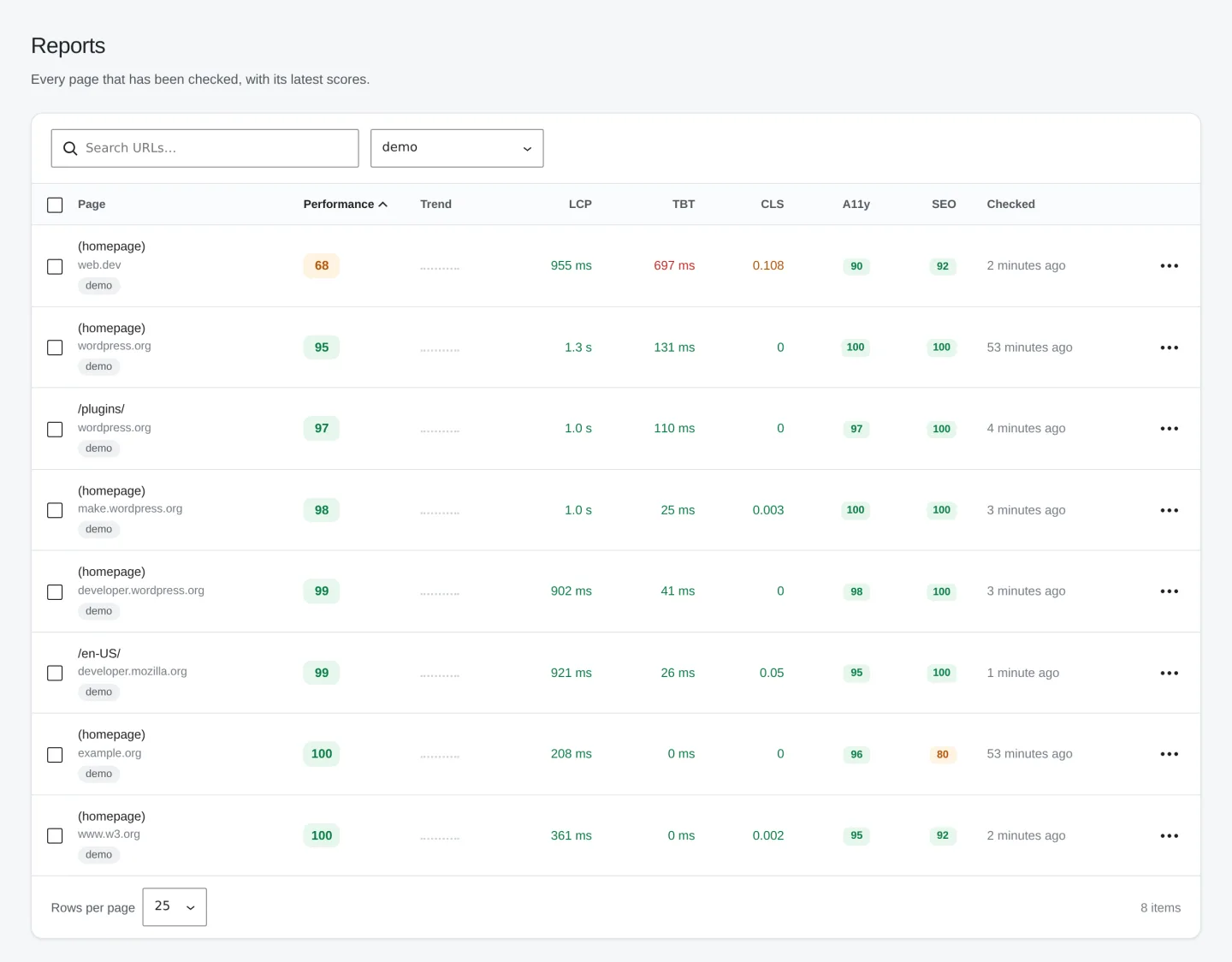
- Click a column header to sort. Sorting by Performance from low to high is a good way to find the pages to fix first.
- Search by URL, or filter by type.
- Select pages to recheck, ignore or delete them in bulk. The … menu on each row does the same for one page.
A single page
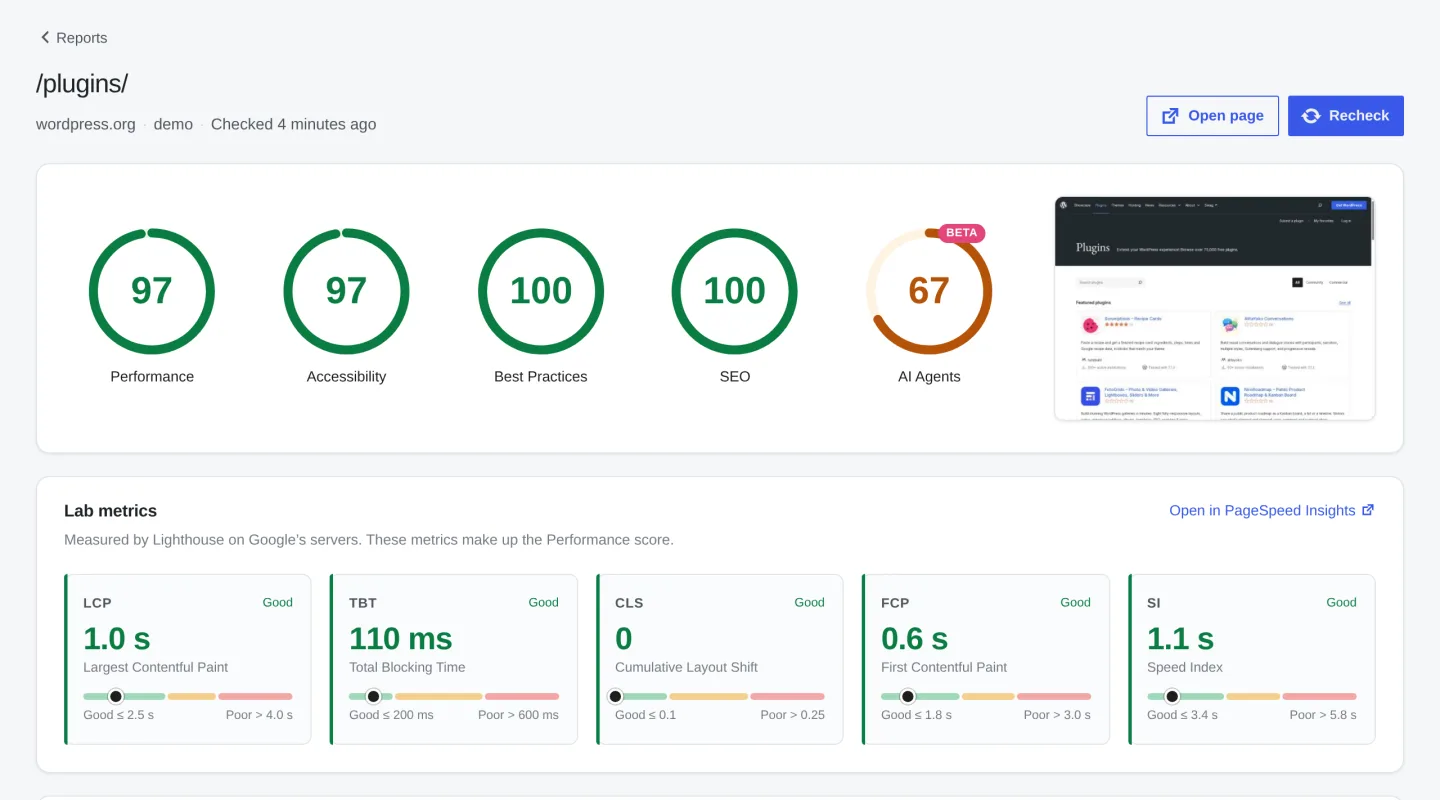
Click any page to open its full report.
Lab metrics
These five numbers come from Lighthouse, run by Google on its own servers. They make up the Performance score.
| Metric | What it measures | Good |
|---|---|---|
| LCP, Largest Contentful Paint | When the biggest image or text block shows up | 2.5 s or less |
| TBT, Total Blocking Time | How long the page is too busy to respond to clicks | 200 ms or less |
| CLS, Cumulative Layout Shift | How much the layout jumps while loading | 0.1 or less |
| FCP, First Contentful Paint | When the first text or image appears | 1.8 s or less |
| SI, Speed Index | How quickly the page fills in visually | 3.4 s or less |
Real-user experience
If enough Chrome users visited the page in the last 28 days, Google shares how fast it really was for them. This is the data Google uses in search, and it includes INP, which shows how quickly the page reacts to clicks and taps.
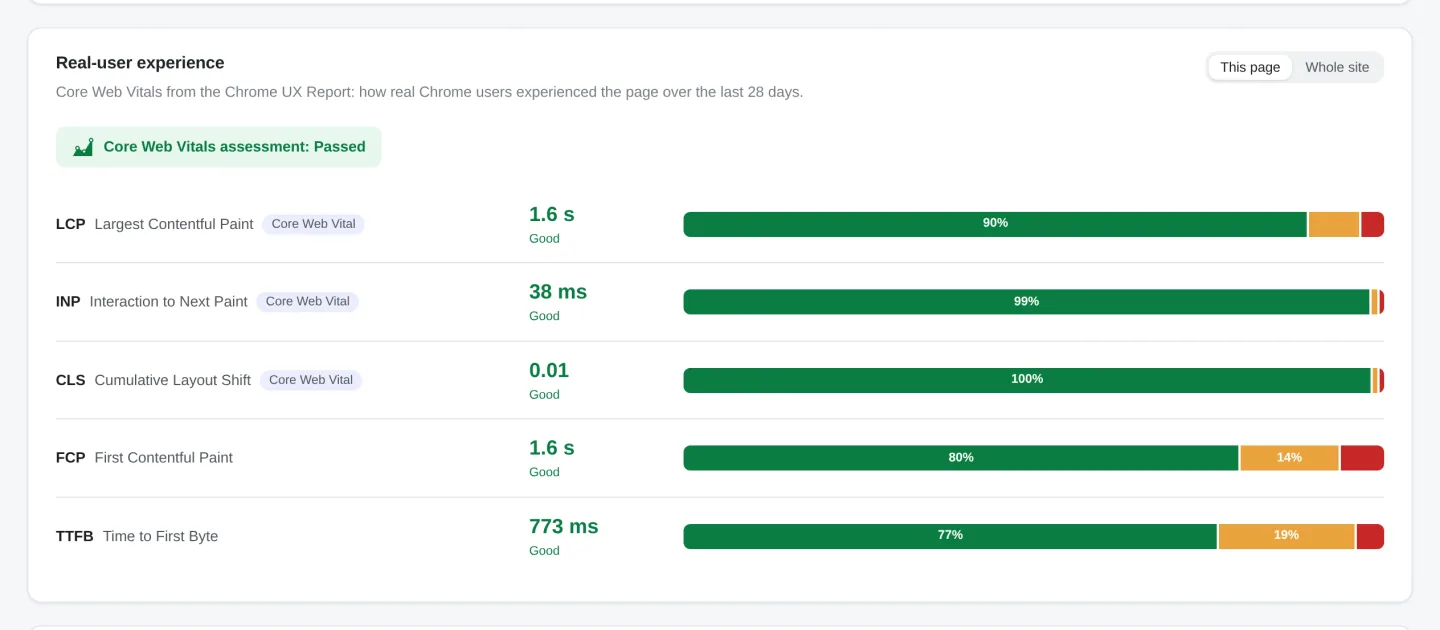
Switch to Whole site to see the same numbers for your whole domain. Smaller sites often have no real-user data at all. That is normal, and the lab results still show what to improve.
Audits
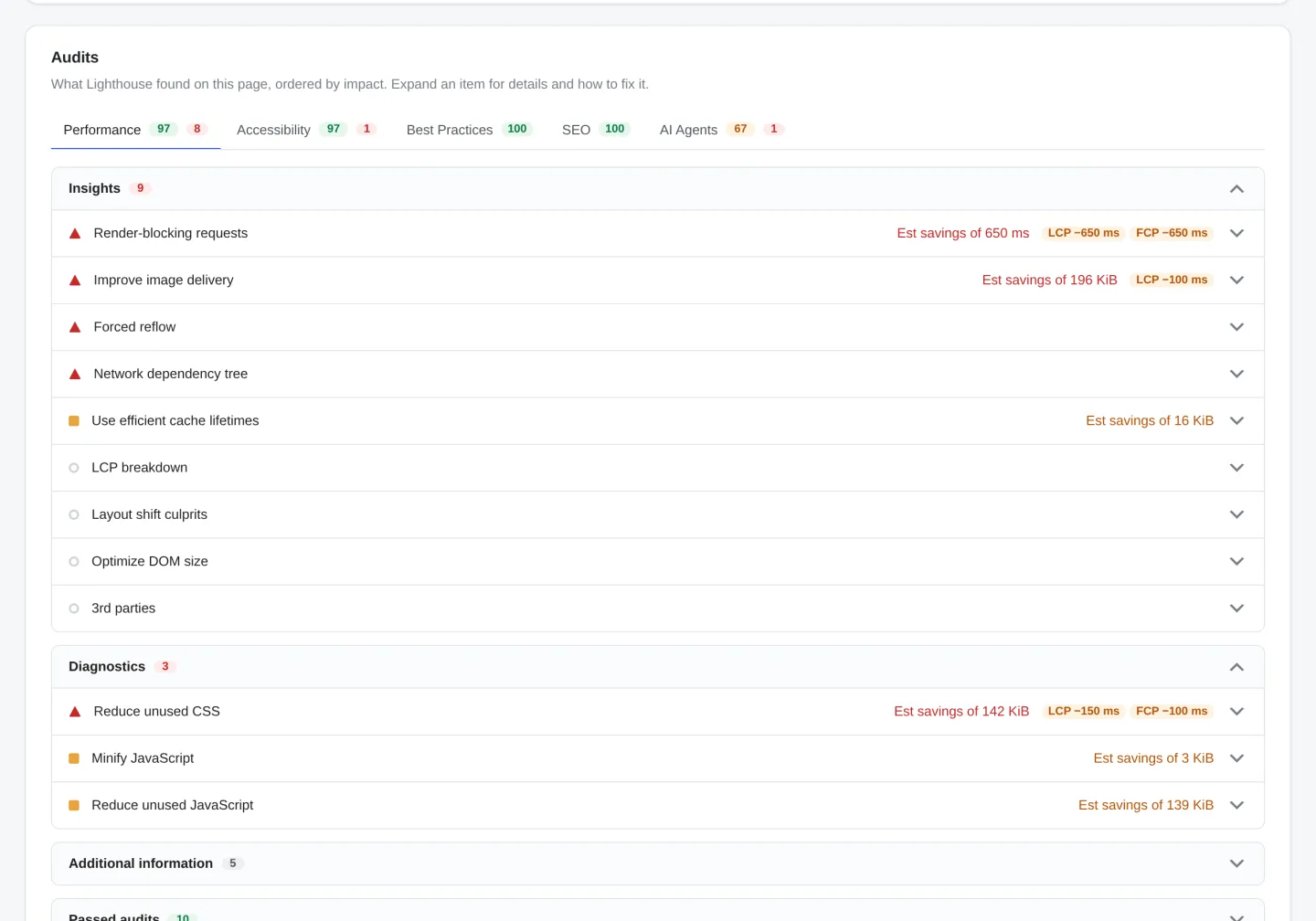
At the bottom you find everything Lighthouse noticed, in the same groups as on pagespeed.web.dev. Open an item to see the files involved, the estimated savings and, where Google has them, tips for WordPress.
The AI Agents score
This is Lighthouse’s new Agentic Browsing category. It checks how well AI agents and answer engines can read and use your page, for example whether you have a valid llms.txt file and a clean accessibility tree. Google still marks it as experimental, so the checks may change.
Why scores change between checks
Lab scores move a little from run to run, mostly because of how fast your server answers at that moment. A difference of a few points means nothing. Look at the trend over several days, or at the real-user data, which is not affected by a single run.