

A minimum order quantity that produces a cryptic checkout error is worse than no rule at all — the customer bounces and you never know why. Here is how to set one that guides instead of blocks.
Set the u003cstrongu003edefault quantityu003c/strongu003e to the minimum, so the product page starts at a valid value.
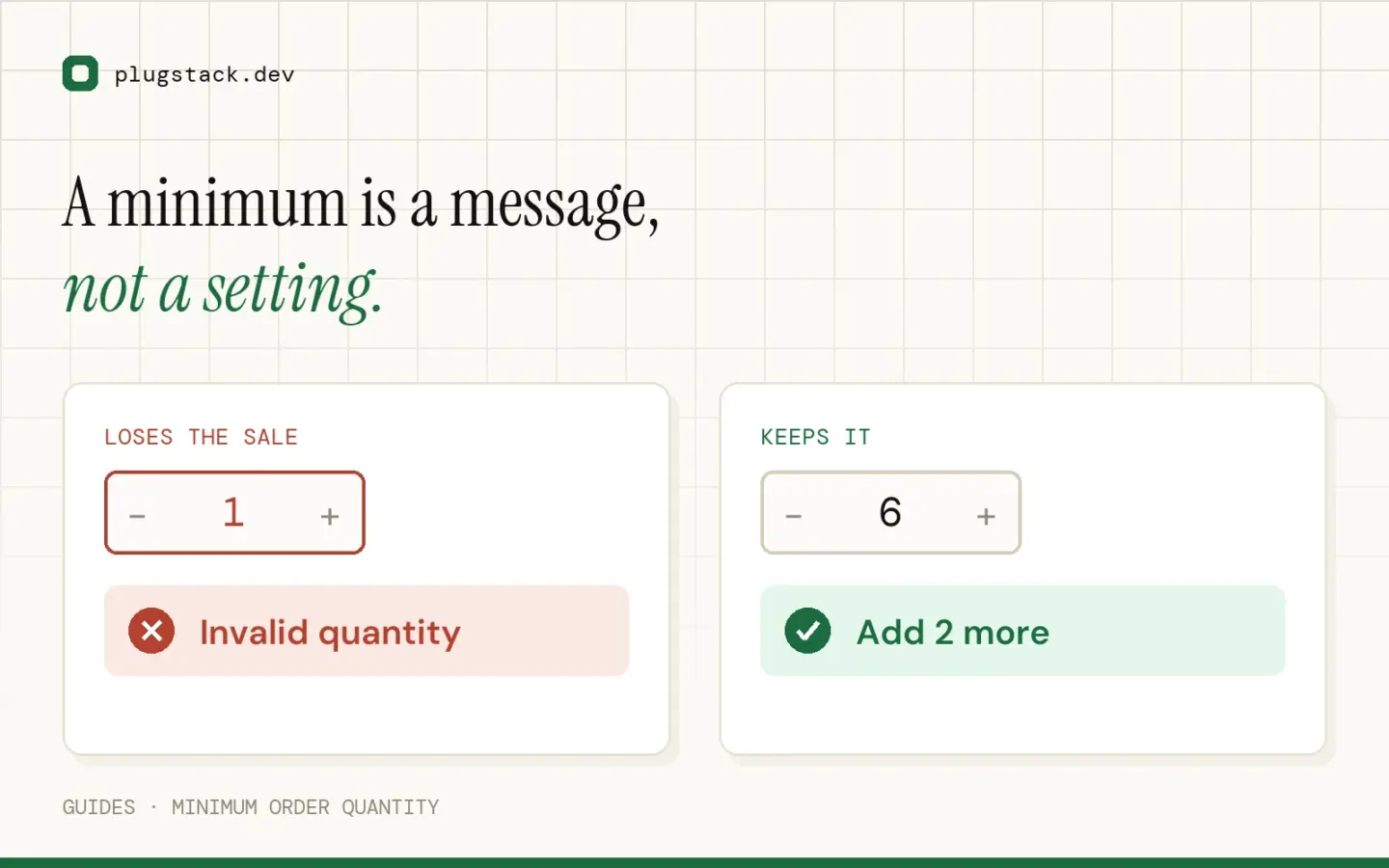
Write the message as an instruction: “The minimum order is 6. Please add 2 more.” — not “Invalid quantity”.
Show the rule u003cstrongu003ebeforeu003c/strongu003e checkout — on the product page and inline in the cart, not only at payment.
Enforce it on the shop grid too, so the customer never gets a surprise later.
If you sell in packs, use u003cstrongu003estepu003c/strongu003e instead of minimum so 6 / 12 / 18 are the only options.
Placement matters as much as wording
The message should appear where the mistake happens: under the quantity field on the product page, and next to the line item in the cart. A customer who sees “add 2 more” at the point of the error almost always does.